
How to use Springbind
Last updated 13 November 2026
The short version. Sign in, tell Springbind what you’d like to write, and answer its questions one at a time in your own words. When you have enough, pick out your story’s key moments, arrange them into chapters and write each chapter with your answers beside you, until your first draft is done.
1. Getting started
Where to find Springbind
- On an Android phone or tablet: the Springbind app, from Google Play.
- On an iPhone, iPad or computer: in your web browser at app.springbind.com. There’s nothing to install, but you can add it to your home screen (see below).
Your account works everywhere, so a story you start on your phone is waiting on your computer, and anything you unlock works on every device you sign in on.
Sign in
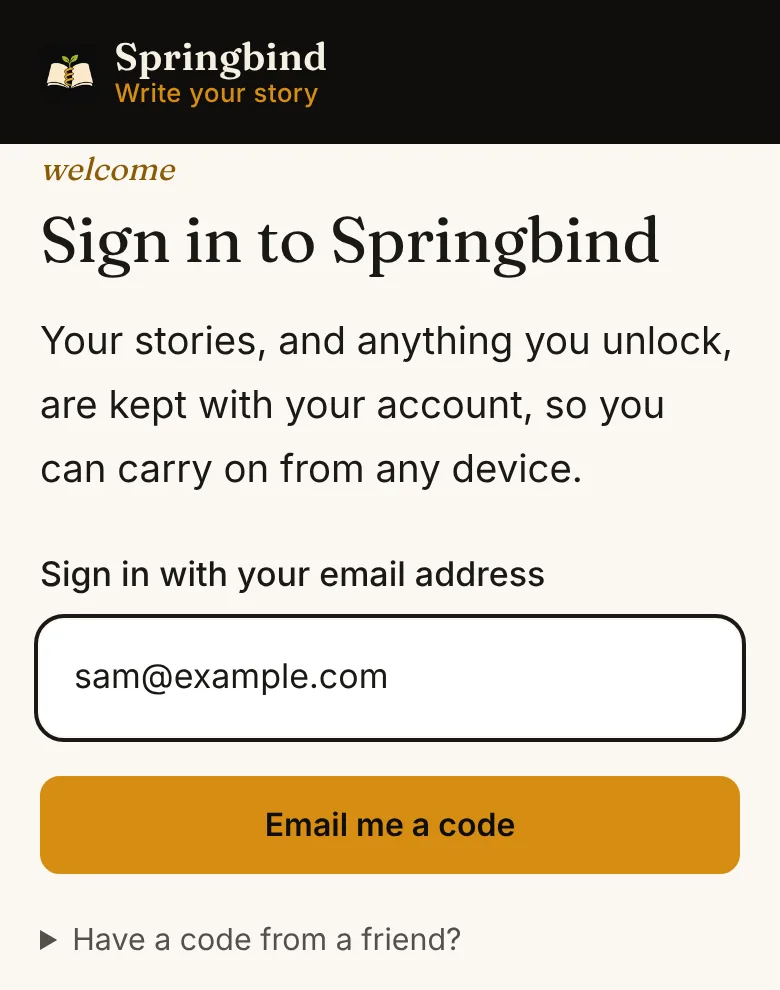
- Open Springbind and type your email address, then tap Email me a code. In the Android app you can tap Continue with Google instead.
- Check your email for a 6-digit code from Springbind. If it hasn’t arrived within a minute, look in your spam folder.
- Type the code and tap Sign in. Codes only work for a short time, so if yours has expired, tap Send a new code.
Signing in for the first time creates your free account. Springbind is for adults, so please be 18 or over.
If a friend sent you their Springbind link or code, open Have a code from a friend? before you sign in. Once you’ve answered your first 5 questions, you and your friend each get 3 extra AI requests.
Start your first story
- Choose what you’d like to write: something true from your own life, a story you’re making up, or I’m not sure yet.
- In a sentence or two, say what’s on your mind. It doesn’t need to be good.
- Add a working title if you have one, or leave it blank.
- Tap Start answering.
Use Springbind like an app
On an iPhone, iPad or computer, you can give Springbind its own icon so it opens full screen and works offline. Open it once while you’re online, then:
| Device | How to add it |
|---|---|
| iPhone or iPad | In Safari, tap Share, then Add to Home Screen, then Add. |
| Windows or Mac computer | In Chrome or Edge, click Install Springbind on the welcome screen, or the install icon at the right of the address bar. |
| Mac with Safari | File, then Add to Dock. |
The install option doesn’t appear in a private or incognito window, or in Firefox.
2. Answering questions
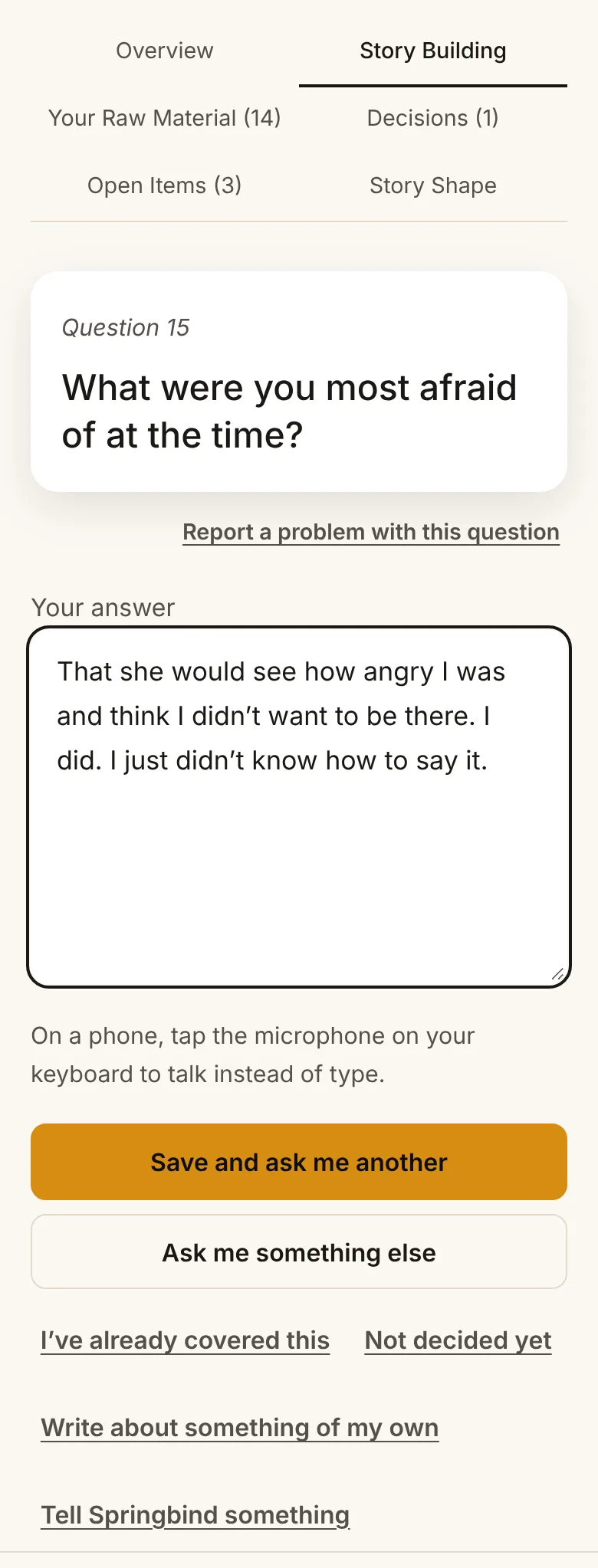
Springbind asks one question at a time. Answer however it comes out, then tap Save and ask me another. Your answers are kept word for word: nothing is polished, and nothing is added that you didn’t say.
| Button | What it does |
|---|---|
| Ask me something else | Skips a question that doesn’t fit. |
| I’ve already covered this | Moves on when an earlier answer already says it. Nothing is saved, and Springbind won’t ask about that again. |
| Not decided yet | Puts the question on your Open Items list to come back to, and moves on. |
| Write about something of my own | Lets you add anything you want in the book. |
| Tell Springbind something | Gives it a fact to remember, or something to ask you about (see below). |
| That’s not a person | Appears when Springbind treats a place, show or thing as a person. Tap it and it won’t make that mistake with that name again. |
| Report a problem with this question | Tells us a question didn’t work, so we can fix it. |
- On a phone, tap the microphone on your keyboard to talk instead of type.
- Start names with a capital letter, and put shows, films, songs and books in quotes, like “Corrie”. It helps Springbind ask the right questions about the right people.
Tell Springbind something
Tap Tell Springbind something under the answer box, type a line, then choose:
- Remember this for a fact, such as “The lead character is called Thomas”. It goes into Decisions.
- Ask me about this for something you want to explore, such as “the priest in the valley”. Springbind asks you a few questions about it before anything else.
If what you type is a detail to settle, such as “the courier’s name”, Springbind asks you one direct question instead, and a short answer is saved to Decisions too. You can also add and remove things to be asked about in the Ask me about section of the Decisions tab.
Checks along the way
Every six answers, Springbind stops for a quick check and shows the answers you’ve just written. The answer box is hidden while it does, so scroll down to see them all. Tap Edit on any that are wrong or out of date, or Something doesn’t fit to add a note to Open Items. When you’re happy, tap That all stands, carry on.
Every five answers or so, one of your open items comes back as a question starting “Still to settle”. Answer it to settle it, or tap Not decided yet to leave it on your list.
The tabs
| Tab | What it holds |
|---|---|
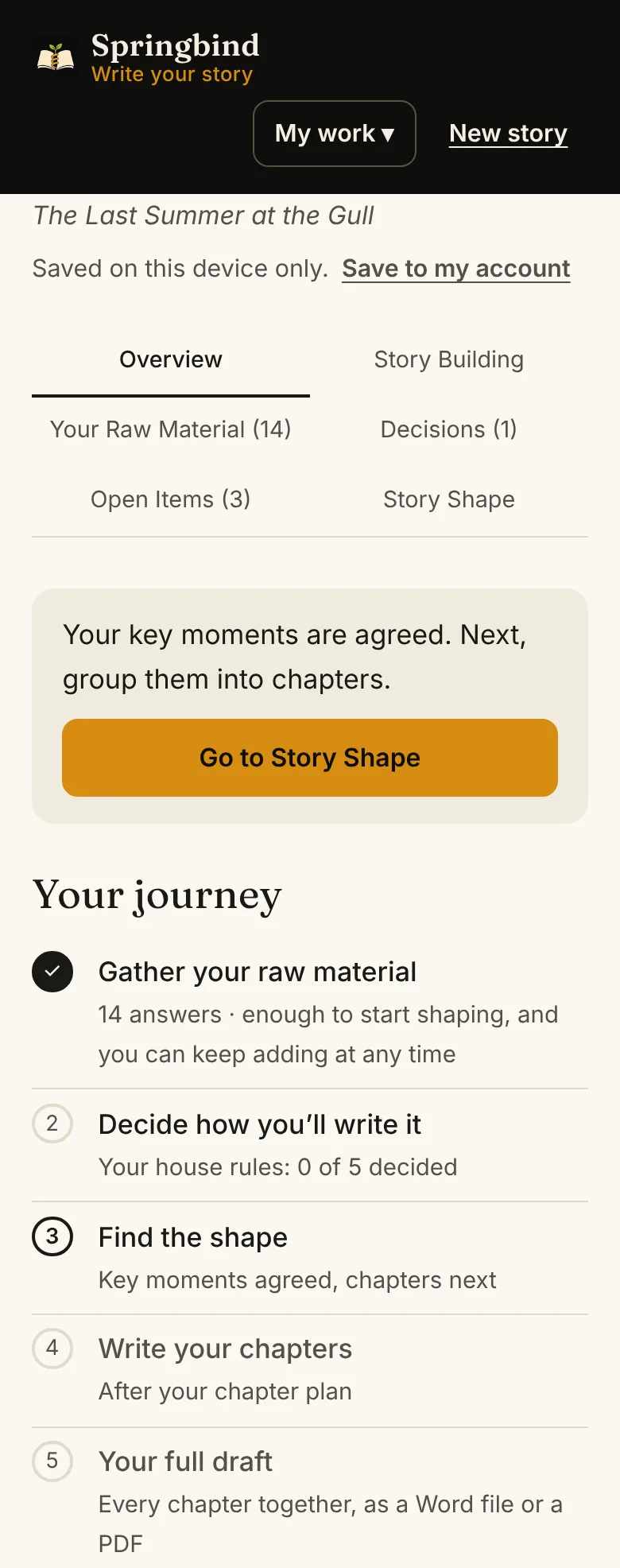
| Overview | Where you are, your next step and your figures. Springbind opens here when you come back to a story. |
| Story Building | The questions. |
| Your Raw Material | Every answer, exactly as you wrote it. Tap Edit to change one. |
| Decisions | How you’re writing it, your watch list, what you want to be asked about, and choices you’ve made about the story. |
| Open Items | Details to check later and things you haven’t decided yet. |
| Story Shape | Appears after 10 answers. Pick your key moments and arrange them into chapters. |
| Writing | Appears once your chapter plan is agreed. Write each chapter and tick it off. |
3. Keeping your work safe
Save your story to your account
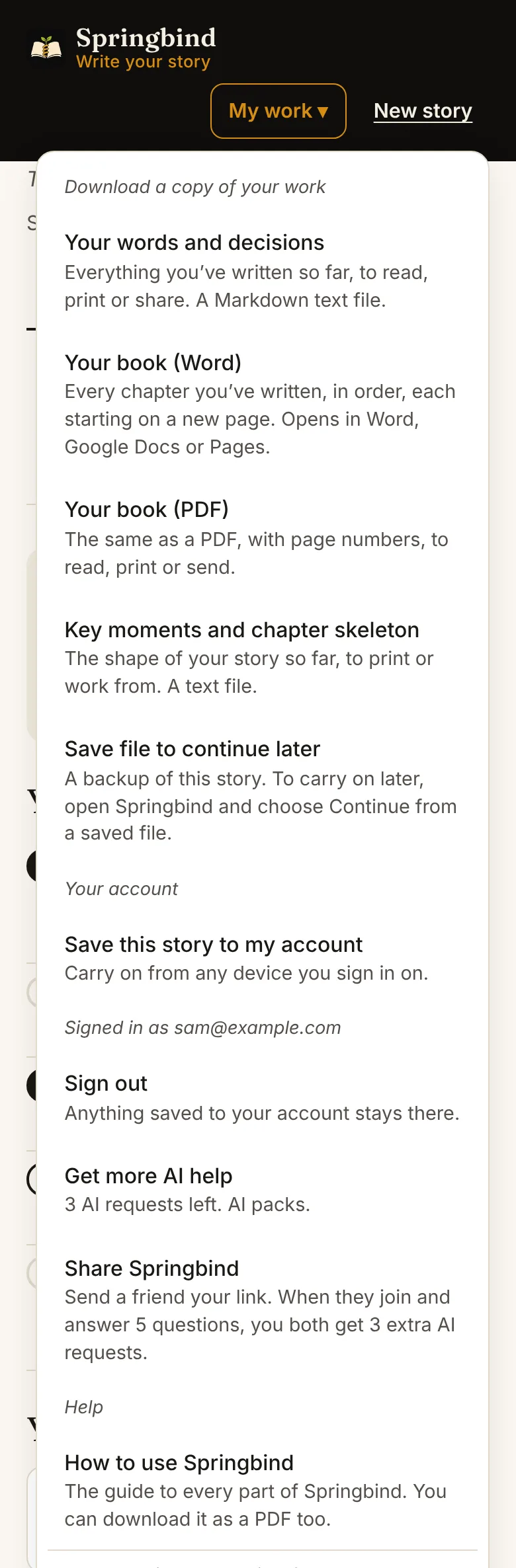
Until you save a story to your account, it’s only kept on the device you’re using. To save it, open My work, choose Save this story to my account, tick the box to agree, and tap Save to my account. From then on it saves automatically as you write, and it’s waiting on any phone or computer you sign in on. Your saved stories are listed on the welcome screen.
The My work menu
| Choice | What it does |
|---|---|
| Your words and decisions | Everything you’ve written so far, as a text file to read, print or share. Always free. |
| Your book (Word or PDF) | Every chapter you’ve written, in order, each on a new page. Comes with unlocking a story. |
| Key moments and chapter skeleton | The shape of your story so far, to print or work from. |
| Save file to continue later | A backup of this story. Keep it somewhere safe, such as an email to yourself. |
| Switch to another story | Back to your list of saved stories. The one you’re in stays in your account. |
| Stop saving to my account | Keeps this story on this device only. |
| Get more AI help | Shows how many AI requests you have left, and where to get more. |
| Share Springbind | Your own link to send to friends (see AI help). |
| Restore purchases | Android app only. Brings back anything bought with your Google account on another phone. |
| Sign out | Anything saved to your account stays there. |
4. Shaping your story
Find the shape
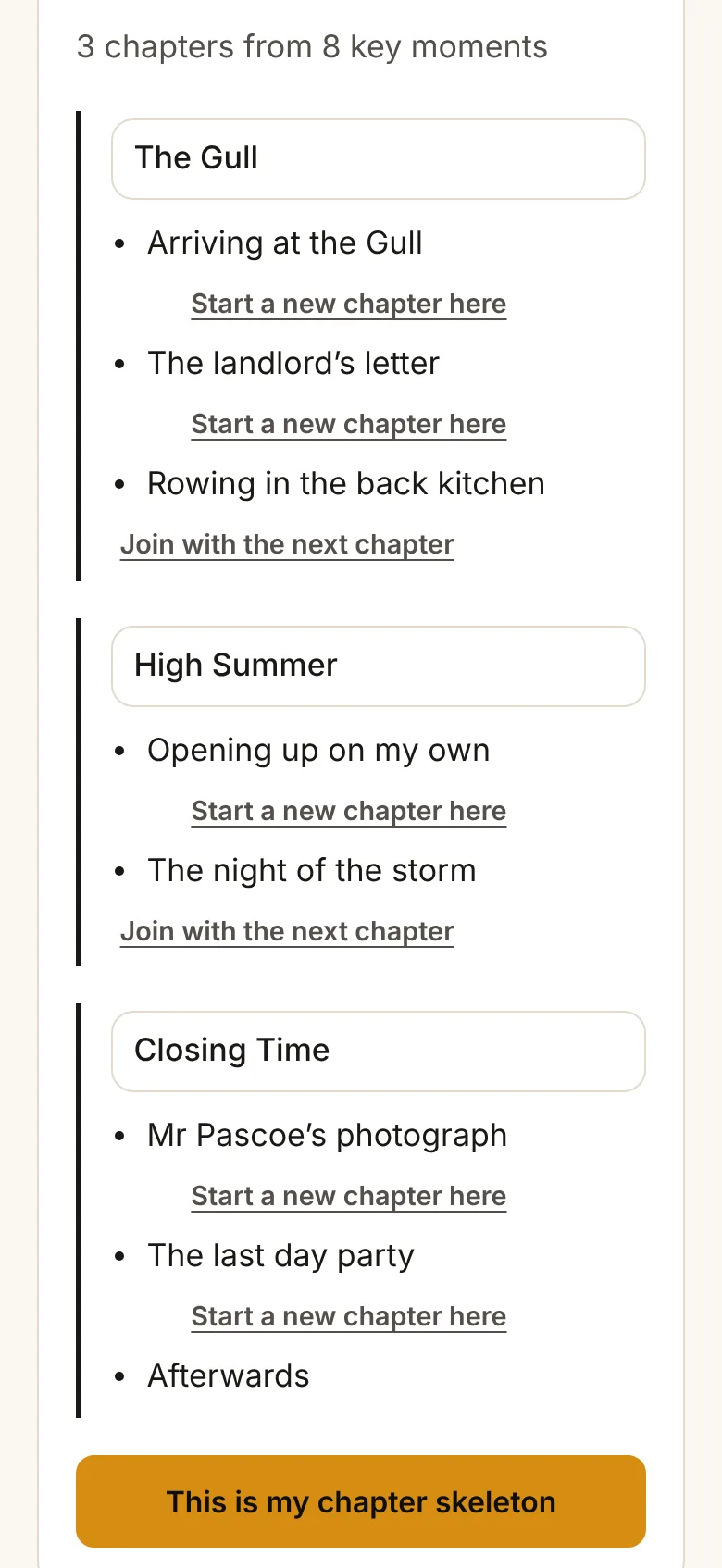
After 10 answers, Story Shape opens. Pick the key moments your story can’t do without, put them in the order they happen, and agree them. Springbind suggests some, and Ask for AI suggestions reads everything you’ve written and suggests more. Picking your key moments is free.
Next, group your key moments into chapters, give each one a working title, and agree your chapter plan. Ask for AI chapter suggestions can suggest a grouping for you. You can change your key moments or chapters later: Springbind asks you to agree the plan again, and anything you’ve drafted is kept.
Strengthen a chapter
Springbind checks each key moment for seven parts: where it happens and who’s there, what’s said, what leads up to it, what comes straight after, what can be seen and heard, what’s done and why, and how it changes things. It also checks how each moment leads to the next. Each chapter is rated Thin, Getting there or Ready, with a line such as “3 of 16 parts covered”.
Tap Strengthen on a chapter to answer questions about just its key moments, starting with what’s missing. The bar fills as parts are covered. You can start writing at any time: thin chapters are just easier to write after a few more answers.
Fill the gaps
Where the gaps are, in Story Shape, lists each chapter with what its key moments are still missing, and a Strengthen button for each. Under it, Find the gaps with AI reads everything you’ve written alongside your chapter plan, decisions and open items, and points out what the story depends on but you haven’t settled. It never suggests what the answer should be. For each gap, choose Answer this, Add to Open Items or Dismiss.
Set your watch list
On the Decisions tab, Your watch list holds the words, phrases, habits and punctuation you want caught in your writing.
- Tap a punctuation chip, such as Em dashes or Brackets, to switch it on or off.
- Type a word or phrase, choose how strict to be, and tap Add to watch list: Never use it, Watch for overuse, or Not at the start of a sentence.
- Put * on the end to catch every form, so nod* finds nod, nods and nodded.
5. Writing your chapters
Open the Writing tab and tap a chapter. Springbind saves as you type.
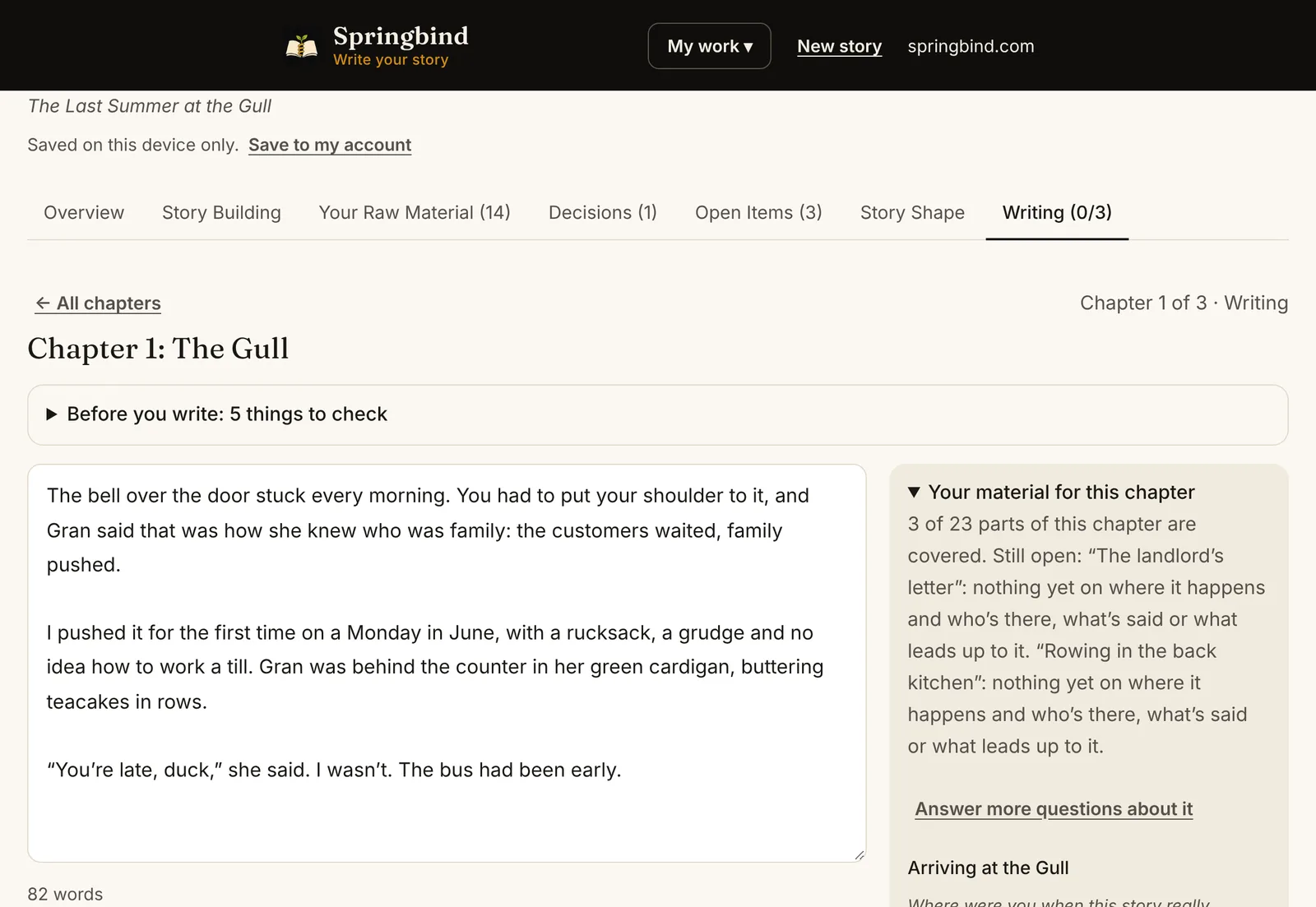
- Before you write sits at the top of each new chapter: how you’re writing it, anything not decided yet, and details still to check.
- Your material for this chapter shows its key moments and your answers. On a computer it sits beside the writing area; on a phone, tap it to open it.
- The last lines of the previous chapter show above the writing area, so each chapter picks up where the last left off.
- Add selected words to my material: if you write a new detail in the chapter, select it and tap this so it counts in Springbind’s questions and checks.
- Check my writing points out everything on your watch list, plus a few common habits. Tap Show them in my text to see each one highlighted. It never changes anything itself.
- Mark as drafted ✓ when the whole chapter is down, however rough. Mark as done ✓ once you’ve read it back and you’re happy with it for now.
- Proofread with AI opens once a chapter is marked as drafted and has at least 400 words. It follows your watch list and checks the chapter against your decisions. Tap Accept or Dismiss for each suggestion.
Earlier versions
Springbind keeps a copy of a chapter each time you mark it as drafted or done, and before you accept an AI proofreading change. Open Earlier versions of this chapter under the writing area to read one, or tap Go back to this version. Your current text is kept as a version too, so nothing is lost. Springbind keeps the last five for each chapter.
Read it through and download it
Read it through, at the bottom of the Writing tab, shows every chapter as one piece. Under each chapter is a Note for later box, which shows at the top of that chapter until you tap Clear the note. When you’re ready, download your book from My work as a Word file or a PDF.
6. What’s free, and unlocking a story
Springbind is free to start, and you can always download everything you’ve written, whatever you’ve paid. All prices include VAT.
| Plan | What you get |
|---|---|
| Free | One story, every guided question, decisions, open items, your watch list and your key moments. Download your writing as a text file. 3 free AI requests to try. |
| Unlock a story | Adds your chapter plan, readiness checks, Fill the gaps and Strengthen Chapter, writing every chapter in Springbind, and Word and PDF downloads. £1.99 to finish your free story, or £2.99 for each new story. |
| Full Springbind | Unlimited stories, with everything, and Word and PDF downloads for every one. £14.99, one-off, yours to keep. |
When you reach a part that comes with unlocking, Springbind shows you what’s included and how to unlock it. Unlocking a story and Full Springbind are one-off payments, not subscriptions.
How a story unlock is used. An unlock for a new story is used once the story is saved to your account or has 5 answers. Until then, if you start a different story instead, the unlock moves to it. Once used, it stays with that story, even if you delete it.
Where to buy
- Android: in the Springbind app, through Google Play. Bought on another phone? Choose Restore purchases in My work.
- iPhone, iPad or computer: in your browser at app.springbind.com. After you pay, your story unlocks straight away. You’ll also get an email with a code: if anything hasn’t unlocked, open Have a code? on the unlock screen and paste it in.
7. AI help
Springbind works fully without AI. If you’d like a second opinion, AI can suggest key moments and chapters, suggest new questions, find gaps in your story, and proofread a chapter. Each of these uses one AI request. Nothing in your story changes unless you choose to use a suggestion.
The first time you ask, Springbind explains what’s sent and asks you to agree. Only the parts of your story needed for that request are sent to Claude, an AI made by Anthropic. Your email address isn’t sent, and Anthropic doesn’t use it to train its AI.
When the AI buttons appear
- Ask AI for 5 new questions appears under the question after about 40 answers, and after three answers while you’re strengthening a chapter.
- AI key moment and chapter suggestions are in Story Shape.
- Find the gaps with AI is in Story Shape once your key moments are agreed.
- Proofread with AI opens once a chapter is drafted and has at least 400 words.
Your AI requests
| Option | Details |
|---|---|
| Free | Every account gets 3 AI requests to try, once. |
| AI pack | £4.99 for 15 requests, one-off, on every plan, in the app or the browser. Requests last 12 months. |
| AI Basic | £3.99 a month for 15 requests a month. In the Android app, once you’ve unlocked a story. |
| AI Plus | £5.99 a month for 35 requests a month. In the Android app, once you’ve unlocked a story. |
Monthly requests renew each time your plan renews and don’t carry over. Springbind uses your monthly requests first, then pack requests, then your free ones. If an AI request doesn’t work, it isn’t counted. Manage or cancel a monthly plan in Google Play.
Earn more by sharing
Choose Share Springbind in My work to get your own link. When a friend joins through it and answers their first 5 questions, you both get 3 extra AI requests. You can earn this for up to 10 friends a year, and the extra requests last 12 months. Springbind never contacts your friends: you share the link yourself.
8. Your account and your privacy
Your writing belongs to you, and it’s never sold or used for advertising. On the welcome screen, under Your privacy:
- Download everything in my account gives you a copy of every story you’ve saved.
- Delete everything from my account permanently deletes your account and everything in it, and signs you out on every device.
If you’re in a story, open My work and choose Switch to another story to get back to the welcome screen. There’s more in our privacy policy and on deleting your account.
9. Starting again from a backup
Use this if Springbind isn’t working properly on a device. It clears Springbind from that device, then loads your story back in.
Before you start: make sure your story shows as saved to your account, or that you have a save file (ending in .json). Clearing removes anything that’s only on this device.
Step 1: remove the app, if you added it
- Android app: press and hold the Springbind icon, then tap Uninstall. Reinstall it from Google Play.
- iPhone or iPad: press and hold the Springbind icon, tap Remove App, then Delete.
- Computer: open Springbind, click the ⋮ or … menu at the top, then Uninstall.
Step 2: clear Springbind’s data from your browser
| Browser | How to clear it |
|---|---|
| Safari on iPhone or iPad | Settings, then Safari (on newer iPhones, Apps, then Safari), Advanced, Website Data. Search for springbind, swipe left on it and tap Delete. |
| Chrome on a computer | Go to app.springbind.com. Click the icon to the left of the address, then Site settings, then Delete data. |
| Edge on a computer | … menu, Settings, Cookies and site permissions, Manage and delete cookies and site data, See all cookies and site data. Search for springbind and delete it. |
| Safari on a Mac | Safari, Settings, Privacy, Manage Website Data. Search for springbind and click Remove. |
Step 3: load your story back in
- Open Springbind and sign in again.
- If your story is listed under “Your stories saved to your account”, tap Continue. You’re done.
- Otherwise, tap Continue from a saved file and choose your save file. On an iPhone, tap Choose File, then Browse, and look in Downloads or wherever you saved it.
- Open My work and choose Save this story to my account, so you won’t need the file next time.
10. If something goes wrong
| Problem | What to do |
|---|---|
| No sign-in code arrives | Check your spam folder, and that you typed your email address correctly. Then tap Send a new code. |
| “That file isn’t a Springbind save file” | Choose the file ending in .json, not the text file from “Your words and decisions”. |
| Opening the save file takes you to another app | That’s your device guessing. Open Springbind first, then use Continue from a saved file. |
| “This story changed on another device” | Pick Use the newer version, unless you know this device has the work you want to keep. |
| The answer box has disappeared | Springbind is doing its quick check. Scroll down past your recent answers and tap That all stands, carry on. |
| A part of Springbind is locked | The chapter plan, Fill the gaps, Strengthen Chapter, writing and Word and PDF downloads come with unlocking the story. See What’s free. |
| I paid but the story is still locked | Open Have a code? on the unlock screen and paste the code from your email. In the Android app, choose Restore purchases in My work. |
| “You’ve used all your AI requests” | Choose Get more AI help in My work for a pack or a monthly plan, or share Springbind with a friend. Everything else still works without AI. |
| A chapter says Thin | Its key moments are missing some parts. Tap Strengthen to answer questions about what’s missing, or start writing anyway. |
| Proofread with AI is greyed out | Mark the chapter as drafted first. It also needs at least 400 words. |
| I want an earlier version of a chapter back | Open Earlier versions of this chapter under the writing area and tap Go back to this version. |
| Springbind looks old or behaves oddly | Tap Check for updates at the very bottom of Springbind, while online. If that doesn’t help, follow Starting again from a backup. |
Still stuck? Email hello@springbind.com with what you see (a screenshot helps), or use Report an issue at the bottom of Springbind.